


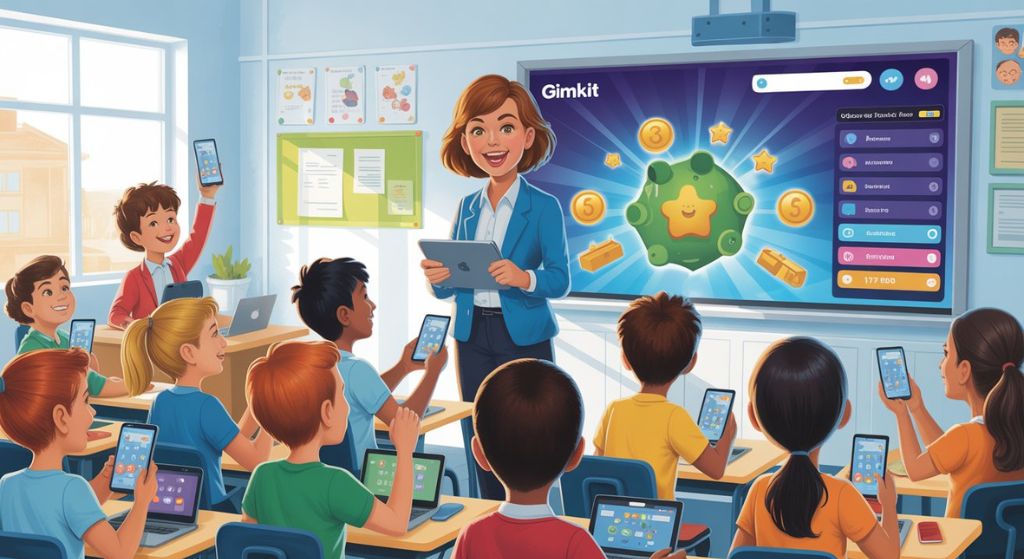
Gimkit changes the questionnaire into a competition, live games that children love to play. There are so many ways to help students who aim to stay focused and learn without realizing what they are studying. It is your responsibility as a Gimkithost to make everything settled, select the questions, choose the style, and thus oversee the session.
For this reason, it works on all subjects and ages that are aligned with the teacher’s likes.. One of the simplest ways to make learning stick is to become a Gimkit host if you’re sick of dull review sessions.
You’ll discover the precise functions of a Gimkithost, how to get started in a matter of minutes, and the useful advice that most guides omit. Just straightforward procedures that are effective in actual classrooms no fluff.
What Exactly Does a GimkitHost Do?
A teacher, tutor, or group leader usually hosts a Gimkit game. They make the content and run the live game. You set the pace in real time. You can give hints, stop the game, kick players who aren’t on topic, or end early if you need to. You get clear reports after the game that show who got the material and who needs more help.
It is not complicated. It is the responsibility of the people who make games for the first time to take care of the time.
Step 1: Sign Up and Set Up Your Account (Takes 2 Minutes)
- First of all you should have to click on Sign up by clicking on gimkit.com.
- Use Google, Microsoft, or emailwhatever’s easiest for your school.
- Free account: Good for most teachers. Unlimited basic games and kits.
When you log in, there will be a dashboard in front of your screen with three main tabs.
My Kits – where you build and store your question sets
- Assignments – for homework-style games
- Classes – for grouping students and tracking progress
That’s it. You’re ready to host.
Step 2: Create Your First Kit (The Heart of Every Game)
A kit is just your list of questions and answers. Here’s the simple process:
- Click New Kit on the dashboard.
- Give it a clear name (example: “7th Grade Geography Review”) and pick the subject and language.
- Add questions three easy ways:
- Type them yourself (multiple choice, true/false, or short answer).
- Import straight from Quizlet—copy your set and paste.
- Pull from Gimkit’s question bank for quick starts.
- Add images or short audio clips to questions when it makes sense. Visuals keep students hooked.
- Hit Finish Kit.
Step 3: Pick the Right Game Mode
There are ten modes in Gimkit, but the most demanding and used for classrooms.
Classic: They spend it on power-ups. Simple and strategic—great for any subject.
- The Floor is Lava: Money slowly drains away, so speed matters. Perfect for quick reviews and keeping energy high.
- Trust No One (or Find the Imposter): Students work together to spot who’s giving wrong answers on purpose. Builds teamwork and critical thinking.
- Survival: Wrong answers hurt your “life” total. Feels intense and fun.
- Team Play or 2D modes: Groups compete on a map with coins, battles, or objectives. Ideal for bigger classes.
Choose based on your goal. Need quick practice? Go Classic. Want collaboration? Try Trust No One. Test one mode first, then mix it up.
Step 4: Host Your Live Game
- Open your kit and click the big green Play Live button.
- Pick your game mode and click Continue.
- Adjust quick options (time limit, goal amount, whether late joiners are allowed). Click Continue again.
- You land in the Lobby. You’ll see a game code and QR code.
- Share the code or link with students. Once everyone’s in, click Start Game.
During the game you can:
- Watch the live leaderboard
- Pause to explain a tough question
- Give hints to the whole class
- End the game early if time runs short
Students join in seconds. No logins needed for them—just the code.
Step 5: After the Game – Use Reports to Improve
When the game ends, click into the reports tab. You’ll see:
- Overall class performance
- Which questions everyone missed
- Individual student breakdowns
- How much time they spent on each question
This is gold for planning your next lesson. You’ll spot misconceptions instantly instead of waiting for a graded quiz.
Actionable Tips Most Hosts Wish They Knew Sooner
- Mix in student-created questions: Let kids build part of the kit for review projects. They love seeing their own work in the game.
- Use nicknames wisely: Turn on the nickname generator so no one feels embarrassed.
- Combine with your existing lessons: Import Quizlet sets you already use. Zero extra work.
- Run homework games: Assign a kit with a deadline. Students play at their own pace, and you still get reports.
- Try KitCollab: Students add questions, and you approve them before the game. Great for ownership and deeper learning.
Common Problems and Quick Fixes
- Lag or slow loading: Ask students to close other tabs. Works fine on phones, Chromebooks, or laptops.
- Too many wrong answers: Pause and review the question together. Or switch to an easier mode next time.
- One student dominating: Turn on team modes or set a money-spending limit.
- Students can’t join when they double-check the code.
These fixes handle 95% of issues.
Why Gimkit Hosting Works So Well
Kids stay engaged because they’re competing, earning rewards, and moving fast. Teachers save time because reports do half the grading work. And it works equally well in-person, remote, or hybrid.
Whether you teach elementary math, high school history, or anything in between, hosting just one game will show you the difference.
Ready to Host Your First Game?
There is no need to You don’t need to be tech-savvy. You don’t need fancy equipment. Just sign up, build one simple kit, and hit Play Live. Your students will thank you and they’ll actually remember the material.
Go to gimkit.com right now and try it. Your first session will be easier than you think.
Frequently Asked Questions
Do students need accounts to play?
No. They only need the game code. You’re the only one who needs a full account to host.
Can I host without paying?
Yes. The free version is plenty for most teachers. Paid plans just give bigger kits and extra bells and whistles.
How many students can join one game?
Hundreds at once. It scales easily for big classes or even school-wide events.
Is there a way for students to create their own kits?
Absolutely. Many teachers let students build review kits as projects. You approve before hosting.
What’s the best mode for younger kids?
Classic or simple 2D modes work great. Save Trust No One for older students who enjoy strategy.
How do I see results after the game?
Everything shows up automatically in the reports section. Exportable and easy to read.
